
Download GoPro Webcam – Turn Your Hero 8 into a High‑Quality Mac Webcam
Overview
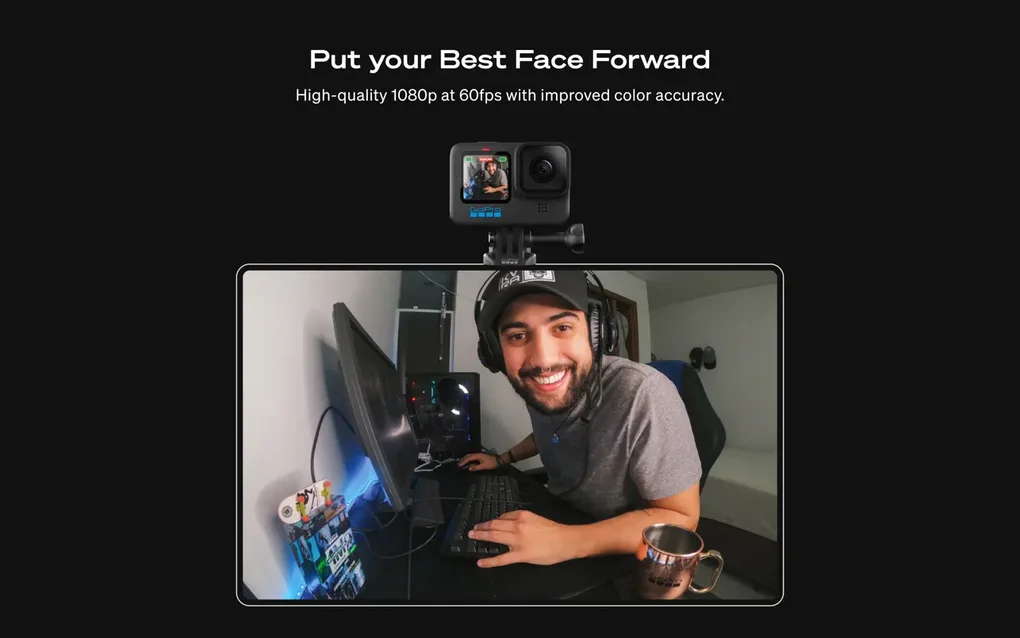
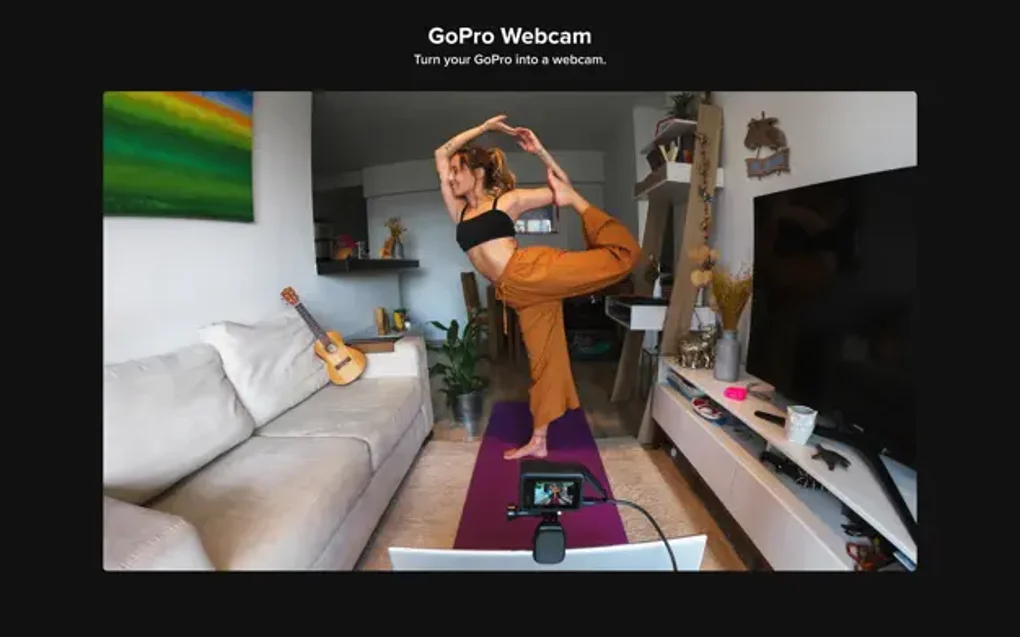
GoPro Webcam is a dedicated Mac application that transforms your GoPro Hero 8 into a professional‑grade webcam. In a world where video meetings have become the norm, the built‑in cameras on many laptops and iMacs often fall short in clarity, low‑light performance, and framing flexibility. GoPro Webcam bridges that gap by leveraging the Hero 8’s larger sensor, superior optics, and advanced image processing to deliver crisp, vibrant video directly into popular conferencing platforms such as Zoom, Google Meet, Microsoft Teams, WebEx, and Slack. The app operates as a lightweight background service, automatically detecting a connected Hero 8 via USB‑C and exposing it as a standard webcam device to macOS. Users can instantly switch from the default iSight camera to their GoPro with a single click, without the need for additional drivers or third‑party plugins.
The software is designed with simplicity in mind. After a quick download and installation, the user interface presents a clean control panel where resolution, frame rate, and field‑of‑view settings can be tweaked. One standout feature is the adaptive resolution selector, which lets you balance video quality against bandwidth constraints—a crucial advantage when you’re on a limited or unstable internet connection. Whether you’re a remote worker, a content creator, or an educator, GoPro Webcam provides a seamless, secure, and free solution to upgrade your video presence without investing in a separate webcam.
Key Features & Benefits
- Native macOS Integration: The app registers the Hero 8 as a standard video input, eliminating compatibility hassles with popular video‑calling software.
- Adjustable Resolution & Frame Rate: Choose from 1080p @ 30 fps, 720p @ 60 fps, or lower settings to conserve bandwidth while maintaining a clear picture.
- Low‑Light Optimization: Hero 8’s larger sensor and built‑in night‑mode algorithms deliver brighter video in dim environments, outperforming most built‑in laptop cameras.
- One‑Click Connection: After plugging the GoPro via USB‑C, the app automatically detects the device and makes it available to all macOS apps that request a webcam.
- Secure & Private: No cloud streaming; the video feed stays on your local machine, ensuring privacy for confidential meetings.
- Free Updates: Regular firmware‑compatible updates keep the software current with the latest macOS releases and GoPro firmware changes.
- Wide Platform Support: Works flawlessly with Zoom, Google Meet, Microsoft Teams, WebEx, Slack, OBS Studio, and any other macOS app that uses a webcam.
Beyond the technical specifications, GoPro Webcam offers tangible benefits for everyday users. Professionals who rely on a polished visual presence can now project a more polished image without purchasing an expensive external camera. Educators conducting remote lessons can showcase clear lab demonstrations or whiteboard sketches with minimal lag. Content creators can stream high‑definition video directly to platforms like Twitch or YouTube without additional capture cards. In all cases, the application’s low footprint ensures that it does not consume excessive CPU resources, preserving system performance for other tasks.
Installation, Setup & Daily Usage
Getting GoPro Webcam up and running is straightforward, even for users with limited technical experience. Follow these steps to start using your Hero 8 as a webcam:
- Download the Installer: Visit the official GoPro website and download the macOS .dmg file labeled “GoPro Webcam for macOS.”
- Run the Installer: Open the .dmg, drag the GoPro Webcam icon into your Applications folder, and confirm any macOS security prompts.
- Connect Your Hero 8: Use the supplied USB‑C cable to connect the camera to your Mac. Ensure the camera is turned on and set to “USB Mode” in the GoPro settings.
- Launch the App: Open GoPro Webcam from the Applications folder. The app will automatically detect the camera and display a preview window.
- Configure Settings: In the control panel, choose your preferred resolution, frame rate, and field‑of‑view. Use the “Bandwidth Optimizer” toggle to let the app adjust quality based on your network speed.
- Select the Camera in Your Conferencing App: Open Zoom, Teams, or any other video app, navigate to the video settings, and select “GoPro Hero 8” as the camera source.
Once configured, the workflow becomes virtually invisible. The app runs quietly in the background, updating the preview feed whenever you start a video call. If you need to switch back to the built‑in iSight camera, simply close the GoPro Webcam application or select a different video source in the conference software. The app also supports hot‑plugging; you can disconnect and reconnect the Hero 8 without restarting your Mac, and the software will re‑initialize the feed automatically.
Compatibility & System Requirements
GoPro Webcam is optimized for macOS 10.14 (Mojave) and later, including macOS Ventura and macOS Sonoma. The application runs natively on both Intel‑based Macs and Apple Silicon (M1, M2, and later) without the need for Rosetta translation, ensuring smooth performance across the entire Mac lineup.
The software is specifically built for the GoPro Hero 8 Black, but it also recognizes the Hero 8 (non‑Black) models that share the same USB‑C output. Future updates are expected to add support for newer GoPro models such as the Hero 9, Hero 10, and Hero 11, although those are not officially supported at launch.
Minimum hardware requirements include:
- 2 GB RAM (4 GB recommended for simultaneous streaming and screen sharing)
- Intel Core i5 processor or Apple Silicon equivalent
- At least 200 MB of free disk space for the application and temporary cache files
- USB‑C cable (provided with the Hero 8) for a reliable wired connection
Because the video feed is processed locally, there is no need for a high‑speed internet connection to achieve high‑quality output; however, a stable broadband connection (minimum 3 Mbps upload) is recommended for smooth video calls, especially when using the 1080p @ 30 fps setting. The built‑in bandwidth optimizer can automatically downgrade to 720p @ 30 fps if the connection becomes unstable, preserving call continuity.
Pros, Cons & Frequently Asked Questions
Pros
- Free to download and use
- High‑resolution video from a dedicated camera sensor
- Simple one‑click setup with automatic detection
- Adjustable resolution and frame rate for bandwidth management
- Works with all major macOS video‑conferencing apps
- Low CPU usage and no need for additional drivers
Cons
- Only supports GoPro Hero 8 at launch (future models require updates)
- Requires a wired USB‑C connection; no native wireless option
- Limited to macOS – no Windows or Linux version currently available
- Battery life of the Hero 8 may limit prolonged use without external power
FAQ
Can I use GoPro Webcam with a Windows PC?
At this time GoPro Webcam is only available for macOS. Windows users can use the GoPro Webcam Desktop app, which provides similar functionality for Windows 10 and later.
Do I need to install additional drivers?
No extra drivers are required. The app uses macOS’s built‑in video capture framework to expose the Hero 8 as a standard webcam device.
Will using the GoPro as a webcam drain its battery quickly?
Yes, continuous video streaming consumes power. For long sessions, connect the Hero 8 to an external power source using a USB‑C charger to prevent battery depletion.
Can I change the field of view (FOV) while the app is running?
The app allows you to switch between Wide, Linear, and Narrow FOV modes from the control panel without restarting the software.
Is my video feed encrypted or sent to the cloud?
All video processing stays on your local machine. The feed is never uploaded to a cloud service, ensuring privacy for confidential meetings.
Reviewer: TechLens Media
Rating: ★★★★★ (5/5)
Summary: GoPro Webcam delivers a professional‑grade video experience on macOS with zero cost, making it a must‑have for anyone who wants to upgrade from a built‑in laptop camera.
Conclusion & Call to Action
In a world where first impressions are often made through a webcam, GoPro Webcam gives you a powerful, affordable way to stand out. By turning the GoPro Hero 8 into a native macOS webcam, you gain access to superior image quality, flexible resolution controls, and seamless integration with the leading video‑conferencing platforms—all without spending a dime. Whether you’re joining a high‑stakes business call, teaching an online class, or streaming live to an audience, the app’s low latency and high fidelity make every interaction look polished and professional.
If you’re ready to replace your grainy built‑in camera with crisp, cinematic video, download GoPro Webcam today. The installation is quick, the setup is intuitive, and the results speak for themselves. Elevate your virtual presence, impress colleagues and clients, and enjoy the confidence that comes with a crystal‑clear image. Click the link below to get started—your next video call will never be the same.